Daily Digest · 2026-07-05
Readwise 今日回顾
按间隔重复挑 3 条:先看问题回忆,再看摘录。
当硅谷开始迷信“品味”,我闻到了一种死亡 · 不懂经也叔的Rust
长期回顾:先看标题回忆:当硅谷开始迷信“品味”,我闻到了一种死亡 这条当时为什么值得划线?
品味是你以为你有的东西。 判断是你实践出来的东西。 能量,是你决定把这一生投进什么地方
完整回顾:打开 Readwise
AI HOT
知识
动态
My reMarkable Obsidian workflow
Nicole van der Hoeven
来源片段:I’m a big note-taker — but what most people don’t realise is that digital notes have only ever been a small part of that. I love analog notes, and lately I’ve loved meshing the analog with the digital using E Ink tablets. The problem with the reMarkable has always been the workflow: there hasn’t been an easy way to get everything back into Obsidian , which — as you know — is kind of important for me. In this video I show how there’s finally a clean way to tie it all together: reMarkable → Obsidian as a PDF → searchable, OCR’d text. The setup: a lot of E Ink I’ve tried a lot of E Ink tablets and readers. My everyday carry is the reMarkable Paper Pro Move , and I keep a full-size reMarkable Paper Pro at my desk. I love them more than the Kobo or Kindle Scribe lines — but the deciding factor was always going to be whether I could get my handwriting into Obsidian without friction. Step 1 — Sync the PDF into Obsidian The piece that makes this work is a community plugin: reMarkable Sync by Tim Dommett . In Obsidian, go to Community plugins → Browse , search for reMarkable , install and enable it. The first time, you’ll register the plugin — it sends you to your reMarkable page, gives you a one-time code, and you paste that in and hit register. In settings, choose a sync sub-folder . I put mine under plugins/reMarkable . Set the sync interval — I have mine sync every 30 minutes, but you can go more frequently, manually, or trigger it on demand from the command palette ( reMarkable Sync: Sync documents ). Once that’s done, anything I write on the reMarkable lands in my vault as a PDF — diagrams, cursive, print, colours and all. In the video I write out a page (neural nets, as explained by my partner Noel), trigger a manual sync, and watch it appear in Obsidian. Step 2 — OCR the handwriting into real text A PDF in Obsidian is a start, but it isn’t searchable or editable. That’s where OCR (optical character recognition) comes in — turning the handwritten image into text that behaves like any other note: searchable, linkable, modifiable. I keep the PDF too (I like preserving the colours and the handwriting, especially when someone else wrote on my tablet), but I want the durable text version as well. I automate this with OpenClaw — my AI agent, Iris , runs a skill on a heartbeat that watches my reMarkable folder, notices new files as they drop in, and OCRs them automatically. It even fills in properties I like and, because it knows my context (and sometimes has the transcript too), it can describe diagrams more completely than I’d expect. It correctly read “Neural nets as explained by Noel” and “get diagrams from WhatsApp” — whether I wrote in print or cursive. That setup is admittedly overkill , and not something I’d recommend to everyone. So in the video I also show the more accessible version: The accessible alternative: Claude Cowork / Claude Desktop If you’d like to automate OCR without a full agent setup, the Claude Desktop app (with Cowork) is a great option — especially if you already keep notes, since your vault is exactly the kind of context that makes AI immediately useful. The prompt I use, roughly: You are in my Obsidian vault, in the folder plugins/reMarkable . Look for the very latest PDF I’ve put in there and OCR it. If there’s a diagram, describe the diagram. If there’s text — handwritten cursive or print — transcribe it. Print all of your findings into a note in the plugins/Claude output folder, using the same file name as the original PDF. It reads the latest PDF, describes the diagram (it got “neuron” and “perceptron” — words that were never actually written), and writes the note. Interestingly it did as well as my own setup, because under the hood we were both using the same model (4.8). Then turn it into a skill. I tell Claude: “Please turn all of these instructions into a skill and call it OCR.” It writes the skill, preserving the paths, and I hit save. Now next time I have a reMarkable PDF to transcribe, I just run /OCR and name the file. If you want to go further, you can even ask it to make this a scheduled task. (Tip: I use Spokenly to dictate these instructions to Claude rather than type them.) Why this matters This simple workflow has made it so I can actually use my reMarkables. I love typing notes on my laptop, but when I’m face-to-face with someone — in a talk, at a conference — a screen between me and the speaker feels distancing, and a little rude. I feel more present without it. And the little Paper Pro Move is far easier to carry than a laptop or iPad. Now that I know everything ends up in Obsidian anyway, I get to pick whatever note-taking method I feel like in the moment — typing, reMarkable, or fully analog. That same OCR process (minus the reMarkable Sync plugin) also works for OCRing photos of pages from my paper traveller’s journal. If you’d like to go deeper on how I use AI in my note-taking, check out my AI note-taking workflows video — I cover the different audio transcription tools I use there too. Arigatō gozaimashita! Mata kondo ne~ Resources 🖊️ reMarkable Sync by Tim Dommett — the Obsidian community plugin that syncs reMarkable documents into your vault as PDFs 🧠 My notes on OpenClaw — the agent runtime Iris runs on 🎥 My AI note-taking workflows — the companion video on transcription and AI capture 🗣️ Spokenly — the dictation app I use to talk to Claude 💛 My Patreon
Adrian 判断:这是来源给出的片段,不等于阅读全文后的摘要。
If Mindmaps Don’t Work For You, Watch This Video
Justin Sung
来源片段:In this video, I reveal the universal problem that makes mind mapping ineffective for most people and show you how to overcome it to dramatically increase your learning efficiency. === Guided Training Program === I’ve distilled my 13 years of experience as a learning coach into a step-by-step learning skills program. If you want to be able to master new knowledge and skills in half the time, check out: === About Dr Justin Sung === Dr. Justin Sung is a world-renowned expert in self-regulated learning, a certified teacher, a research author, and a former medical doctor. He has guest lectured on learning skills at Monash University for Master’s and PhD students in Education and Medicine. Over the past decade, he has empowered tens of thousands of learners worldwide to dramatically improve their academic performance, learning efficiency, and motivation.
Adrian 判断:这是来源给出的片段,不等于阅读全文后的摘要。
图书
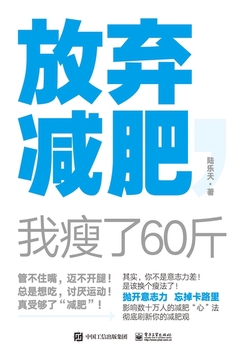
《放弃减肥,我瘦了60斤》
本书以作者自己健康减肥60斤后的心得及方法为基础,结合五年来的相关写作积累,探究屡次减肥失败的真正原因——并非是意志力太差,而是减肥确实难,且无法长期持续。全书就围绕这个难点,寻求合理的解决方案——不用做需要坚持的事情(如忍受饥饿、疯狂锻炼)、把减肥目标缩小、让减肥成为习惯。本书分14章,从“…
热门划线写下一个你可以每天做到的不需要动用意志力坚持的每日运动目标吧!
读者想法哈哈哈,读到这里可以确定作者一定读过《微习惯》,且很喜欢这本书。
设计
设计动态
Fintech Engineering Handbook
Sidebar
怎么看:Sidebar 推荐「Fintech Engineering Handbook」:这类链接适合当设计发现入口,但要带着问题看——它具体在排版、动效、作品呈现或交互结构上哪里值得学。
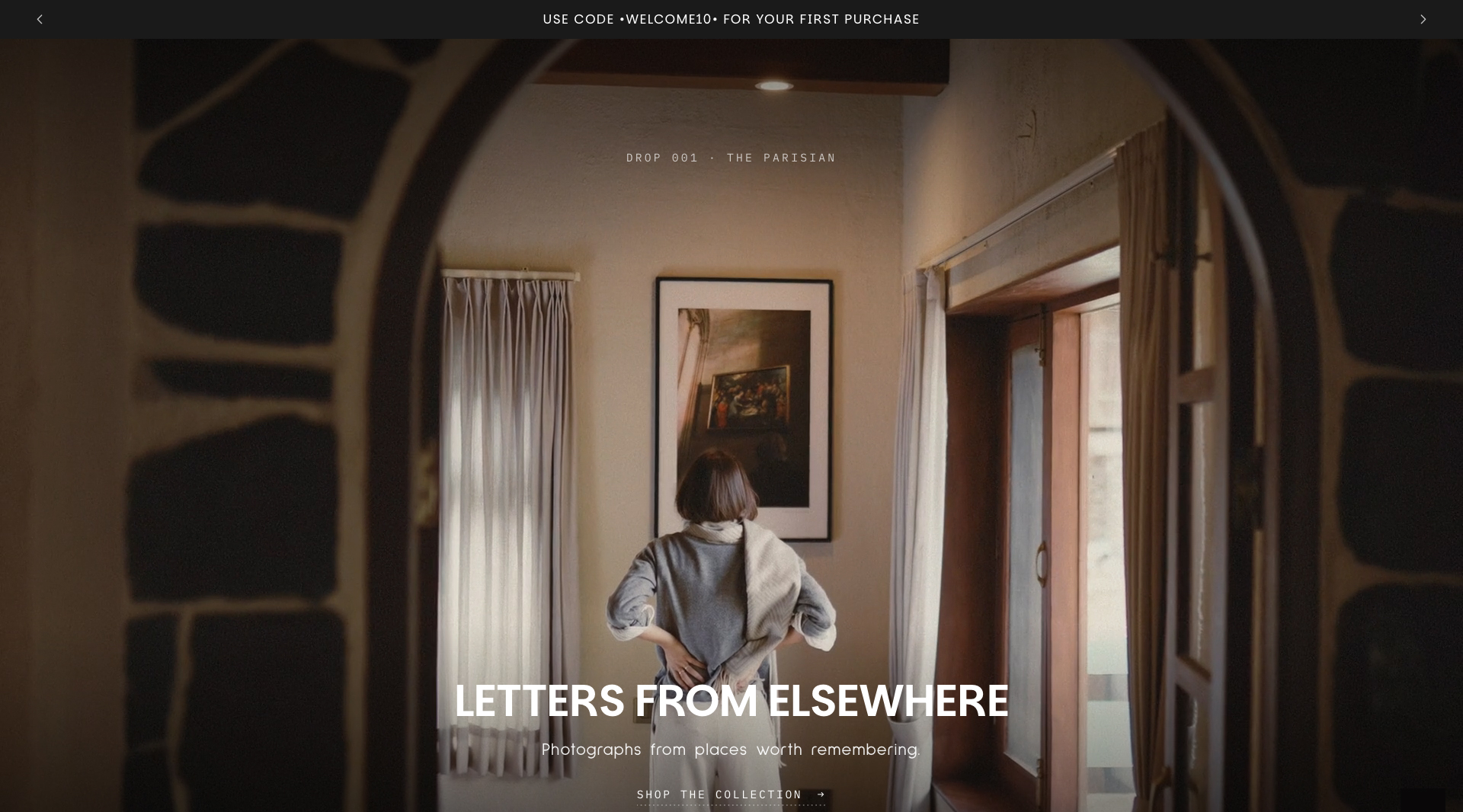
The Print Loft
Minimal Gallery
怎么看:这条适合作为设计审美样本:点进去看具体画面,再判断它的版式、颜色、字体和交互细节哪里成立。 有图可看,适合直接点进去看视觉细节。
Crafting AI Explanations for Every Role in Your Enterprise
Nielsen Norman Group
怎么看:NNGroup 这篇讲「Crafting AI Explanations for Every Role in Yo…」:重点不是视觉灵感,而是产品设计里哪些东西只是用来思考的草稿,哪些才该当成交付物,适合训练设计判断。
美学训练
Cleveland Museum of Art:今日美学训练
Cleveland Museum of Art
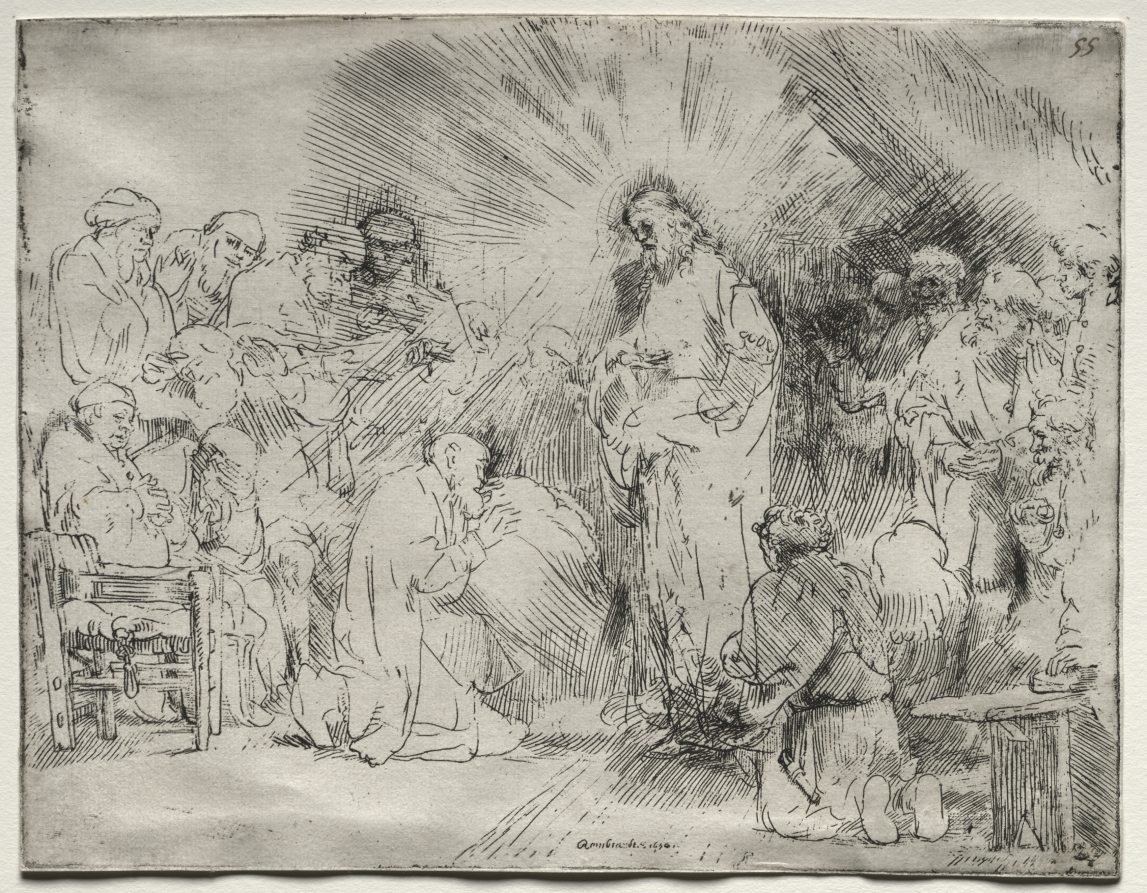
怎么看:今日画家:伦勃朗(Rembrandt),今天重点看明暗、脸部表情和精神重量。
作品:《Christ Appearing to the Apostles》
- 画家 / 信息:画家 Rembrandt van Rijn,创作时间 1656,地区 荷兰
- 画家和这幅画:《Christ Appearing to the Apostles》适合放在伦勃朗的明暗传统里看:亮部通常不是单纯照明,而是在把人的脸、手和心理重量从暗处托出来。
- 背景:这件作品适合用来观察画面如何安排主题、色块、视线动线和视觉重心。
- 怎么看:先找主角和视觉重心,再看光线、色块和人物/物体关系怎样把故事带出来。
Cleveland Museum of Art:今日美学训练
Cleveland Museum of Art
怎么看:今日画家:伦勃朗(Rembrandt),今天重点看明暗、脸部表情和精神重量。
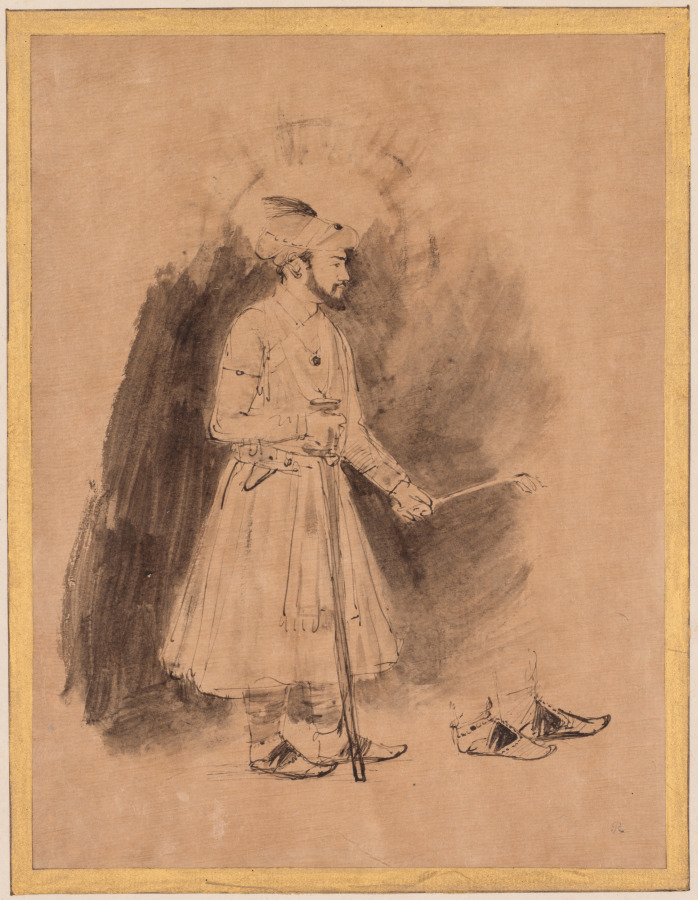
作品:《Shah Jahan》
- 画家 / 信息:画家 Rembrandt van Rijn,创作时间 c. 1656–61,地区 荷兰
- 画家和这幅画:《Shah Jahan》适合放在伦勃朗的明暗传统里看:亮部通常不是单纯照明,而是在把人的脸、手和心理重量从暗处托出来。
- 背景:这件作品适合用来观察画面如何安排主题、色块、视线动线和视觉重心。
- 怎么看:先找主角和视觉重心,再看光线、色块和人物/物体关系怎样把故事带出来。